 simpleBudget
Sharing a Budget
Sharing lets another simpleBudget user view and edit your budget. Great for couples, roommates, or anyone managing money together.
How to share
- Open the Settings page (gear icon in the bottom nav)
- Tap Share Budget
- Scan the QR code of the person you want to share with (they must already have a simpleBudget account)
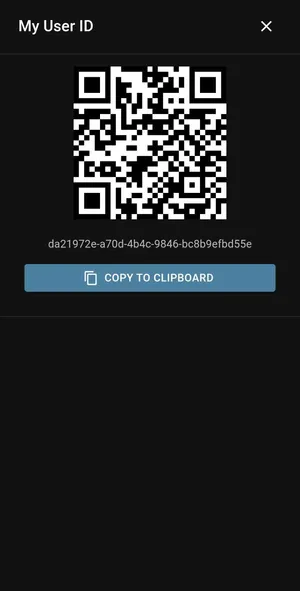
- To find this QR code, they need to go to Settings and tap Show My QR Code
- If you can’t scan their QR Code, have them send you their user id (found on the QR Code page) and you can enter it manually:
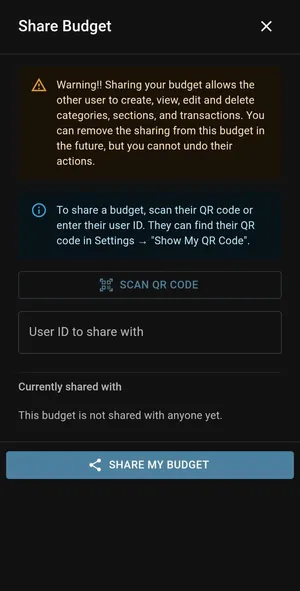
- Tap Share
The other person will see your budget appear in their budget selector next time they open the app.
What shared users can do
- View all sections, categories, and transactions
- Add and edit transactions
- Add and edit categories and sections
- Change budgeted amounts
What shared users cannot do
- Delete the budget
- Remove other shared users
- Change the budget name
Only the budget creator (owner) can do these things.
Removing access
To stop sharing with someone:
- Go to Settings → Share Budget
- You’ll see a list of people the budget is shared with
- Tap the remove button next to their name
They’ll lose access immediately, but any transactions they added will remain.
Tips
- Each person should install the PWA on their own device for the best experience
- You’ll both see changes in real time — no need to refresh or sync manually
- Consider naming your budget clearly (e.g., “Household Budget”) so it’s obvious in the budget selector