 simpleBudget
First Time Setup
Getting started with simpleBudget takes about 2 minutes. Here’s the full walkthrough.
1. Create your account
- Go to app.simplebudget.com/signup
- Enter your name, email, and a password (8+ characters)
- Tap Sign Up
- Check your email and click the verification link
Once verified, you can log in.
2. Create your first budget
After your first login, you’ll be prompted to create a budget:
- Give it a name (e.g., “My Budget” or “Household Budget”)
- Check “Include default sections & categories” if you want a head start — this creates common sections like Income, Housing, Food, Transportation, etc.
- Tap Add Budget
If you skip the template, you’ll start with a blank budget and can add sections manually.
3. Set your amounts
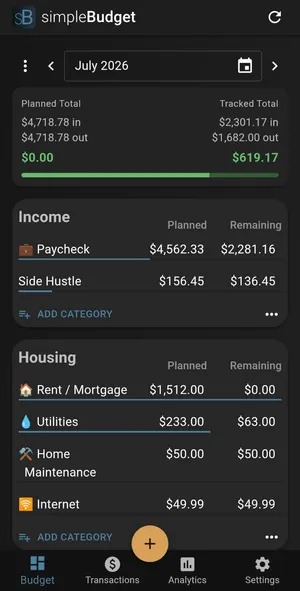
Now you’re on the Budget page for the current month:
- You’ll see your sections listed (Income at the top, expenses below)
- Tap any category to set its budgeted amount
- Start with income — enter your expected take-home pay
- Then work through expenses — rent, groceries, subscriptions, etc.
The summary at the top shows your planned income vs. planned expenses. Aim for the difference to be $0 or positive.
4. Start tracking
As you spend money throughout the month:
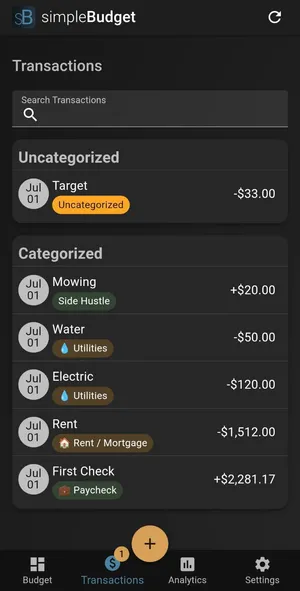
- Tap the + button (bottom of screen on mobile, or “Add Transaction” on desktop)
- Enter the amount, pick a category, and add a short description
- The budget page updates in real time to show how much you have left in each category
Tips for your first month
- Don’t stress about getting amounts perfect. You’ll adjust as you learn your actual spending patterns.
- Check in weekly. A quick 2-minute review keeps you on track without feeling like a chore.
- Use the “Copy budget outline” feature next month to carry your structure forward without re-entering everything.