 simpleTracker
Creating and Managing Notes
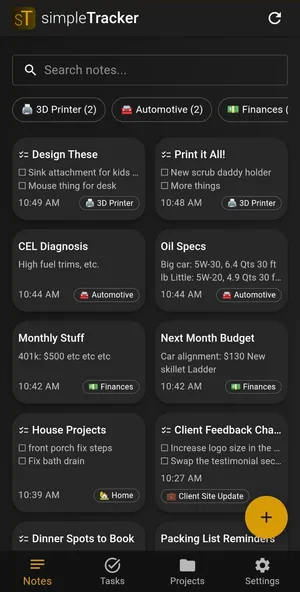
Notes in simpleTracker come in two types: text notes (freeform Markdown) and list notes (checklists). Here’s how to use both.
Creating a Note
- Open simpleTracker and navigate to the Notes tab
- Tap the + button to create a new note
- Choose your note type:
- Text — freeform writing with full Markdown support
- List — a checklist of items you can mark complete
Writing with Markdown
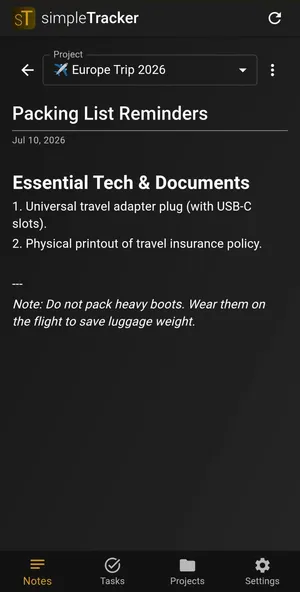
Text notes support full Markdown including:
- Bold, italic, and
strikethrough - Headings (# H1, ## H2, ### H3)
- Bullet and numbered lists
- Links and code blocks
The formatting toolbar gives you quick access to common styles, or you can type Markdown syntax directly. A live preview shows how your note will look.
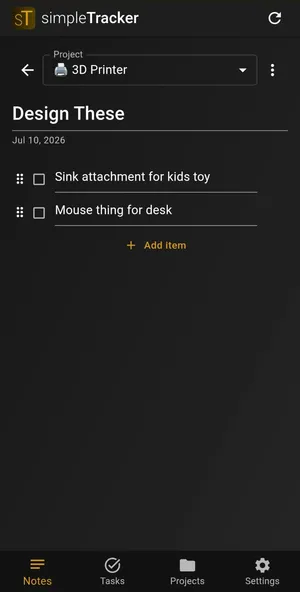
List notes work as simple checklists — tap items to mark them complete:
Organizing Notes
- Pin important notes to keep them at the top of your list
- Archive old notes you don’t need day-to-day (they’re still accessible, just hidden from the main view)
- Assign to a project to group related notes together
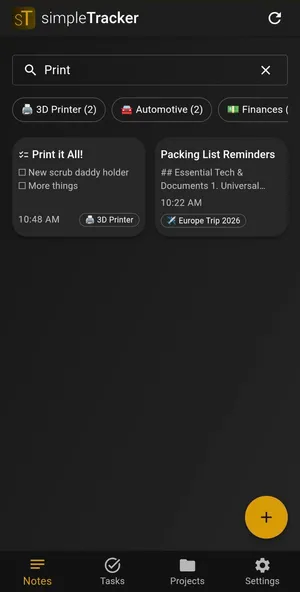
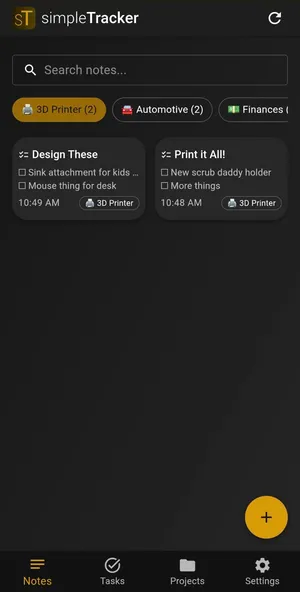
Use the search bar to find notes quickly, or filter by project:
Sharing Notes
To share a note with another user:
- Open the note you want to share
- Tap the share/collaborate option
- The other user needs to be in your contacts (exchanged via QR code)
Shared notes sync in real time — both users see changes instantly.